

Dude Downloads Documentation
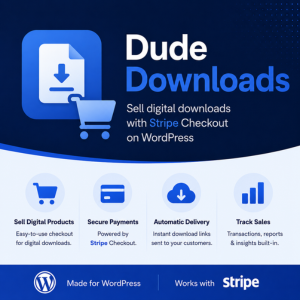
Sell digital downloads with Stripe Checkout.
Lightweight WordPress plugin for selling PDFs, ZIP files, software, licences and other digital products directly from your website.
Dude Downloads Documentation
Sell digital downloads with Stripe Checkout.
Lightweight WordPress plugin for selling PDFs, ZIP files, software, licences and other digital products directly from your website. Current product version: 2.2.27.
What Dude Downloads Does
Dude Downloads lets you:
- Offer free downloads (visitor enters email, receives a secure link).
- Sell paid downloads via Stripe Checkout (payment happens on Stripe’s pages, not inside WordPress).
- Deliver files through expiring, limited-use download links and email notifications.
- Embed products on any page with a block or shortcode.
You do not need WooCommerce. There is no shopping cart—each product is a single checkout or free claim.
Requirements
| Requirement | Minimum |
|---|---|
| WordPress | 6.5+ (6.6+ recommended) |
| PHP | 8.1+ |
| Stripe account | Required for paid products |
| HTTPS | Strongly recommended for live payments |
Paid checkouts use Stripe Checkout only. Card data is never stored on your WordPress site.
Installation
- Install Dude Downloads from the WordPress plugin directory, or upload the plugin ZIP under Plugins → Add New → Upload Plugin.
- Activate the plugin.
- In the admin sidebar, open Dude Downloads.
On first use you may see a Freemius opt-in screen. You can skip it—the free plugin works without a licence. A Pro licence (purchased separately) unlocks advanced features described below.
Quick Start
- Connect Stripe — Dude Downloads → Settings. Add your Stripe test publishable and secret keys, leave Test mode enabled, and click Save and test Stripe connection.
- Create a product — Dude Downloads → Products → Add New. Set a title, choose Free download or Paid download, attach a file, set a price (paid only), and Publish.
- Place the product on a page — Copy the shortcode from the product screen, e.g.
[[dude_download id="123"]], or insert the Dude Download block and pick the product. - Test — Visit the page. For a paid product, use Stripe test card
4242 4242 4242 4242with any future expiry and CVC.
Admin Menu Overview
| Screen | Purpose |
|---|---|
| Dude Downloads (home) | Shortcuts to products and settings |
| Products | Create and edit download products |
| Transactions | Sales and free claims; open a row for details |
| Settings | Stripe keys, webhooks, Stripe Tax, currency, logging, uninstall |
| Tools | Outgoing webhook test and delivery log (Pro) |
| Reports | Sales and revenue summaries (Pro) |
| System Status | Environment checks when troubleshooting |
Users who can edit posts can manage products. Settings, Transactions, Tools, and Reports require an administrator (manage_options).
Connecting Stripe
Dude Downloads uses manual API keys from your Stripe Dashboard.
Test Mode
- In Stripe Dashboard, enable Test mode.
- Go to Developers → API keys and copy the Publishable key and Secret key (test).
- In WordPress, open Dude Downloads → Settings.
- Enable Use Stripe test keys (Test mode).
- Paste keys into Test publishable key and Test secret key.
- Click Save and test Stripe connection.
Webhook Setup
Stripe notifies WordPress when a payment succeeds. Your webhook URL looks like:
https://YOUR-SITE/wp-json/dude-downloads/v1/stripe/webhookOn a public live site:
- In Stripe: Developers → Webhooks → Add endpoint.
- Paste the URL above.
- Subscribe to at least:
checkout.session.completed,checkout.session.async_payment_succeeded,checkout.session.async_payment_failed,checkout.session.expired,charge.refunded. - Copy the Signing secret (
whsec_…) into the matching test or live webhook secret field in plugin settings.
On Local WP: Stripe cannot reach your machine. Use the Stripe CLI to forward events, or enable Allow “Confirm payment” without webhooks (test mode only).
Going Live
- Complete Stripe account activation and switch the Dashboard to Live mode.
- In plugin settings, disable Test mode and enter Live keys and webhook signing secret.
- Disable Allow “Confirm payment” without webhooks.
- Run a real small-value purchase to confirm email and download delivery.
Creating Products
Open Dude Downloads → Products → Add New.
Product title
Shown on the front end (when title is visible), in emails, and in transaction records.
Product type
| Type | Visitor experience |
|---|---|
| Paid download | Sees price and Buy now (or your label). Pays via Stripe Checkout, then gets download access. |
| Free download | Enters email (name optional), submits, receives download access without payment. |
Both free and paid products are unlimited on the free plugin plan.
Description
Optional plain text under the title on the product embed.
Price and currency (paid only)
Enter the price in major units (e.g. 19.99). Currency defaults from Settings → Default currency but can be overridden per product.
Button label
Customize the call-to-action (defaults: Buy now / Download now).
Downloadable file
Click Select file to choose a file from the Media Library. Delivery uses secure links, not a direct public media URL.
Download expiry and limit
Per product (available on the free plugin and Pro), set:
- Download expiry (days) — how long the customer link works (default 7)
- Download limit — max download attempts (default 5)
These apply to every free and paid download product. They are not Pro-only.
Success / thank-you message
Shown after a successful paid checkout (or on the return UI). If empty, a default thank-you message is used.
Administrator notifications
Optional checkbox to email the site administrator when someone completes a free download or paid purchase.
Shortcode
Each product shows its embed code, e.g. [[dude_download id="42"]]. The product must be Published for visitors to see it.
Legacy products
Older tip or fixed-price products may still appear with a warning. They cannot accept new checkouts. Create a new free or paid download product instead.
Showing Products on Your Site
Block editor
- Edit a page or post.
- Add block Dude Download (category: Widgets).
- Choose the product in the block sidebar.
- Optional: toggle title/description, custom button text, or compact layout.
Shortcode
[[dude_download id="123"]]| Attribute | Default | Description |
|---|---|---|
id | — | Required. Product post ID. |
show_title | yes | Show product title (yes / no). |
show_description | yes | Show description (yes / no). |
button_text | (from product) | Override button label. |
layout | default | default or compact. |
Also supported: [[wpdude_dd]] and legacy [[wpdude_download]].
Not supported: [[simple_product]] is no longer registered.
Place the shortcode or block on the same page you use as the Stripe return URL when possible—the thank-you and download button appear inline after checkout.
What Your Customers Experience
Free download
- Visitor enters email (and optionally name) and submits.
- They see a success message and download link on the page.
- They receive an email with the download link (if WordPress mail is configured).
Paid download
- Visitor clicks your buy button.
- They are redirected to Stripe Checkout to pay.
- After payment, Stripe returns them to your site.
- They see your thank-you message and Download your file when payment is confirmed.
- They receive a download email.
If confirmation is still pending, the page shows “Your payment is being confirmed…” and updates when complete.
Cancelled checkout
If the customer abandons Stripe Checkout, they return with a message that no payment was taken.
Download links
Links are tied to the transaction, expire after the configured period, and count toward the download limit.
Transactions
Dude Downloads → Transactions lists every free claim and paid order. Filter by status, product type, product ID, or date range. Click a date for detail view.
| Status | Meaning |
|---|---|
pending | Checkout started; payment not yet confirmed |
completed | Paid and fulfilled |
free | Free download completed |
failed | Payment failed |
expired | Checkout expired without payment |
refunded / partially_refunded | Refund recorded from Stripe |
Pro: Export CSV exports the current filter for accounting or CRM import.
Sales reports (Pro)
Dude Downloads → Reports summarises completed paid sales (not free claims).
- Choose a From / To date range (defaults to the last 30 days).
- Group by Day, Product, or Customer.
- Review Completed sales and Revenue cards, then the breakdown table.
- Optionally look up a customer email to see that buyer’s recent transactions and download counts.
- Export CSV downloads the current breakdown (UTF-8 with BOM for Excel).
Revenue uses the currency with the highest total in the range when you sell in multiple currencies.
Settings Reference
Stripe
- Test mode — Use test API keys and test webhooks.
- Allow “Confirm payment” without webhooks — Test mode only; shows Confirm payment (local test) on the success page. Do not use on production.
- Default currency — Default for new paid products.
- API keys / webhook secrets — Leave a field blank when saving to keep the existing value.
Outgoing webhooks (Pro)
Send signed JSON events to Make, n8n, Zapier, or your own endpoint. Configure under Settings; use Tools to send a test and view delivery logs.
General
- Log level / Log retention — Diagnostic logging.
- Delete all plugin data when uninstalled — Use with care.
Dude Downloads Pro
Pro is a separate package licensed through Freemius. The free plugin includes unlimited free and paid download products, configurable download expiry and limits, Stripe Checkout, emails, the block, shortcode, and the transactions list.
Pro adds:
| Feature | Benefit |
|---|---|
| Custom customer email subject/body | Per-product templates with placeholders |
| Custom success redirect URL | Send buyers to a custom thank-you page |
| Outgoing webhooks | Automate CRM, email tools, or internal systems |
| CSV export | Export transactions for reporting |
| Sales reports | Revenue summary by day, product, or customer; customer history; CSV export |
| Admin REST API | Integrate with external admin tools |
| Download box styling | Colours, fonts, icon, success notice colours |
Activate Pro from Dude Downloads → Account (Freemius) after purchase. Pro-only fields appear when Pro is active; the free UI does not show locked “upgrade” panels for those options.
Email Delivery
Emails use WordPress wp_mail(). If customers do not receive mail, configure SMTP, check spam, and confirm the site admin email.
Troubleshooting
“Connected to Stripe” fails
- Confirm the full secret key (
sk_test_…orsk_live_…). - Ensure test vs live keys match the Test mode checkbox.
- Check outbound HTTPS from PHP.
Payment succeeded in Stripe but order stays pending
- Webhook missing or wrong signing secret.
- Webhook URL must be publicly reachable.
- On local test mode: enable Confirm payment without webhooks and click Confirm payment (local test).
Download button never appears
- Wait for webhook processing, then refresh.
- Confirm transaction status is
completedorfree. - Ensure the product has a file attached.
Product does not show
- Product must be Published.
- Shortcode
idmust match the product ID. - Legacy product types do not render for visitors.
Privacy and External Services
- Stripe processes payments under Stripe’s terms and privacy policy.
- Freemius (optional opt-in / licensing) may collect usage data when you connect an account.
- Customer emails are stored with transactions for fulfilment.
FAQ
Do I need WooCommerce?
No. Dude Downloads is standalone.
Can I sell multiple files in one product?
Each product delivers one selected file. Bundle files into a ZIP or use separate products.
Can I change the price after someone bought?
Existing transactions keep the amount paid. New checkouts use the current price.
Does it work with page builders?
Use the shortcode in an HTML/shortcode widget or a block-compatible area. Return URLs work best when the product embed is on the return page.
Where is card data stored?
On Stripe’s servers only, not in WordPress.
Are free download claims included in Sales reports?
No. Reports summarise completed paid sales only. Free claims remain on the Transactions list.