

Dude Products Documentation
Sell physical downloads with Stripe Checkout.
Lightweight WordPress plugin for selling PDFs, ZIP files, software, licences and other digital products directly from your website.
Dude Commerce — User Guide
This guide is for site owners and administrators who sell physical products with Dude Commerce. It explains setup, products, checkout, orders, fulfilment, and day-to-day use. Current product version: 1.0.10.What Dude Commerce does
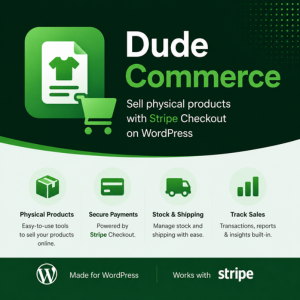
Dude Commerce lets you:- Sell physical products via Stripe Checkout (payment, tax, and shipping address collection happen on Stripe’s pages, not inside WordPress).
- Create standard products or options products (up to five options with generated combinations).
- Track stock, print packing slips and shipping labels, and work a simple picking queue.
- Embed products on any page with blocks or shortcodes.
- Let customers view their order with a passwordless magic link — no customer accounts.
Requirements
| Requirement | Minimum |
|---|---|
| WordPress | 6.5+ |
| PHP | 8.1+ |
| Stripe account | Required for paid checkouts |
| HTTPS | Strongly recommended for live payments |
Installation
- Install Dude Commerce from the WordPress plugin directory (when available), or upload the plugin ZIP under Plugins → Add New → Upload Plugin.
- Activate the plugin.
- In the admin sidebar, open Dude Commerce.
Quick start (about five minutes)
- Connect Stripe — Dude Commerce → Settings. Add your Stripe test publishable and secret keys, leave Test mode enabled, choose a currency and sell-to countries, and click Save and test Stripe connection. See Connecting Stripe.
- Webhooks — Add a Stripe webhook endpoint (Test mode) pointing at your Dude Commerce webhook URL and paste the signing secret. See Webhook endpoint.
- Create a product — Dude Commerce → Products → Add New. Set a title, price, stock, shipping amount (if any), and Publish.
- Place the product on a page — Insert the Dude Commerce Product block (or
[[dude_commerce id="123"]]/[[dude_commerce_buy id="123"]]). - Test — Visit the page in a private/incognito window. Use Stripe test card
4242 4242 4242 4242with any future expiry and CVC.
Admin menu overview
| Screen | Purpose |
|---|---|
| Dude Commerce (home) | Shortcuts to products, orders, picking, and settings |
| Products | Create and edit physical products |
| Orders | Order list and detail (fulfilment, print, refund) |
| Picking | Queue of new orders ready to pick |
| Settings | Stripe keys, webhooks, Stripe Tax, currency, sell-to countries |
| Tools | Outgoing webhook test and delivery log (Pro) |
| Reports | Sales and revenue summaries (Pro) |
| More WP Dude Plugins | Catalogue of other WP Dude plugins |
manage_options).
Connecting Stripe
Dude Commerce uses manual API keys from your Stripe Dashboard.Test mode (recommended first)
- In Stripe Dashboard, enable Test mode (toggle in the dashboard).
- Go to Developers → API keys and copy the Publishable key and Secret key (test).
- In WordPress, open Dude Commerce → Settings.
- Enable Use Stripe test keys (Test mode).
- Paste keys into Test publishable key and Test secret key.
- Click Save and test Stripe connection. In test mode this also probes inbound webhooks. You should see a success message when keys and webhooks are healthy.
Webhook endpoint (live sites and reliable local testing)
Stripe notifies WordPress when a payment succeeds. The plugin shows your webhook URL on the Settings screen:https://YOUR-SITE/wp-json/dude-commerce/v1/stripe/webhook
- In Stripe: Developers → Webhooks → Add endpoint (same Test / Live mode as the plugin).
- Paste the URL above.
- Subscribe to at least:
checkout.session.completedcheckout.session.async_payment_succeededcheckout.session.async_payment_failedcheckout.session.expiredcharge.refunded
- Copy the Signing secret (
whsec_…) into Test webhook secret or Live webhook secret in plugin settings (matching test vs live mode).
Going live
- Complete Stripe account activation and switch the Dashboard to Live mode.
- In plugin settings, disable Test mode and enter Live publishable, secret, and webhook signing secrets.
- Create a Live webhook endpoint with the same Dude Commerce URL and five events.
- Disable Local payment confirm—live sites must rely on webhooks.
- If you collect tax, register live jurisdictions in Stripe Dashboard → Tax before enabling Stripe Tax in plugin settings.
- Run a real small-value purchase to confirm order creation, email, and stock decrement.
Stripe Tax (optional)
Dude Commerce can delegate tax calculation and collection to Stripe Tax. The plugin does not calculate VAT/sales tax locally.
- In Stripe Dashboard → Tax, register the jurisdictions where you must collect tax.
- In WordPress: Dude Commerce → Settings.
- Enable Collect tax with Stripe Tax.
- Choose Price tax behavior:
- Exclusive — listed price is before tax; Stripe adds tax on top.
- Inclusive — listed price already includes tax.
- Save settings and run a test checkout. Checkout will collect addresses so Stripe can calculate tax from the buyer’s location.
Sell-to countries
Under Dude Commerce → Settings, choose which countries customers may select for shipping on Stripe Checkout. Only selected countries appear in Checkout’s shipping address country list.Creating products
Open Dude Commerce → Products → Add New. Set a title, optional description (post content), featured image, and gallery. Product configuration (price, stock, shipping, options) lives on the product edit screen — not in global settings.Product types
| Type | Behaviour |
|---|---|
| Standard | Single SKU, one price, one stock level. |
| Options | Up to five named options (e.g. Size, Colour). Combinations are generated automatically with per-row price, sale price, stock, SKU, and optional image. |
Pricing and sale price
Enter the price in major units (e.g.19.99). Currency comes from Settings → Default currency.
Optional sale price is a single field (no scheduling). When active, the front end shows an On sale badge next to the price.
For options products, each combination can have its own price and sale price.
Stock and SKU
- Stock is always tracked. It decrements when payment succeeds.
- Sold individually hides the quantity selector on Buy Now (customers can only buy one).
- SKU is optional but must be unique across all standard and options products when set.
Shipping
Each product can define a flat shipping amount collected on Stripe Checkout (alongside the product line). Dude Commerce does not calculate carrier rates, shipping zones, or classes — keep fulfilment simple, or handle complex shipping outside the plugin. Stripe collects the shipping address during Checkout for fulfilment.Product images
Three levels:- Featured image — default product image (listings, Checkout when no combination image, emails, fallback).
- Gallery — additional product-wide images shown as thumbnails on the front end.
- Combination image (options products) — optional image per combination row; switches the main image when that combination is selected.
Product categories
Assign categories under the product taxonomy (Product Categories) to organise your catalogue. Categories are native WordPress taxonomies.Options products
- Choose product type Options.
- Add option names and values (e.g. Size → S, M, L).
- Generate combinations, then set price, sale, stock, SKU, and image per row.
- Publish and embed like a standard product. The Buy Now UI lets the customer pick options before checkout.
Showing products on your site
Embed a published product with a block or shortcode. Editors can preview unpublished products; visitors only see published ones.Block editor
| Block | Purpose |
|---|---|
| Dude Commerce Product | Full product (images, title, price, buy) |
| Dude Commerce Images | Featured / gallery / combination switching |
| Dude Commerce Price | Price (and sale / On sale badge) |
| Dude Commerce Buy Now | Buy Now button (and option selectors) |
Shortcodes
Use double brackets on this documentation site so WordPress does not run them. On your shop site, use single brackets.| Shortcode | Purpose |
|---|---|
[[dude_commerce id="123"]] |
Full product embed |
[[dude_commerce_images id="123"]] |
Images only |
[[dude_commerce_price id="123"]] |
Price only |
[[dude_commerce_buy id="123"]] |
Buy Now only |
id (required), show_title (yes/no on the full product shortcode), button (custom Buy Now label).
What your customers experience
- Visitor sees the product embed, chooses options/quantity if available, and clicks Buy Now.
- They are redirected to Stripe Checkout for payment, tax (if enabled), and shipping address.
- After payment, Stripe returns them to your site’s success/return page.
- When the webhook (or local confirm in test) completes the order, stock decrements, the order becomes New Order, and the customer receives an email with a magic link to view the order.
Cancelled checkout
If the customer abandons Stripe Checkout, they return without an order payment and no stock is taken.Orders
Dude Commerce → Orders lists checkouts and paid orders.- Open a row for customer details, line item, shipping address, Stripe IDs, Radar risk, and fees when available.
- From the order detail you can mark fulfilment statuses, open View in Stripe, print packing slip / shipping label, and (when applicable) mark returned or refund in Stripe.
Order statuses
| Status | Meaning |
|---|---|
pending |
Checkout started; payment not yet confirmed |
failed |
Payment failed |
expired |
Checkout session expired without payment |
new |
Paid — ready to pick / fulfil (New Order) |
shipped |
Marked shipped (customer receives shipped email) |
returned |
Marked returned |
refunded |
Refund recorded |
Picking workflow
Dude Commerce → Picking shows a queue of New Order items to pick. Use it as your fulfilment worklist, then open the order to mark shipped and print documents.Packing slips and shipping labels
From an order’s fulfilment section, open Packing slip or Shipping label print views. Print from the browser (or use the auto-print helper where available). These are HTML print views — not PDF generation.Magic links
Customer emails include a secure link to view that order. There are no customer accounts. Links are passwordless and bound to the order; treat them as sensitive.Settings reference
Stripe
- Test mode — Use test API keys and test webhooks.
- Local payment confirm — Test mode only. Lets the return page confirm payment via the Stripe API when webhooks cannot reach your site. Do not use on production.
- Stripe Tax — Enable collection and exclusive/inclusive behaviour. Requires Tax registrations in Stripe.
- Default currency — Used for products and display.
- Webhook endpoint — Copy into Stripe Dashboard (Dude Commerce URL, not Downloads or Paywall).
- API keys / webhook secrets — Leave blank when saving to keep the stored value.
- Save and test Stripe connection — Verifies keys; in test mode also probes inbound webhooks.
General
- Sell-to countries — Countries allowed for shipping address collection on Checkout.
Dude Commerce Pro
Pro is a separate package licensed through Freemius. The free plugin includes unlimited products, Stripe Checkout, stock, orders, picking, packing slips, shipping labels, default customer emails, magic links, inbound Stripe webhooks, and blocks/shortcodes. Pro adds:| Feature | Benefit |
|---|---|
| Outgoing webhooks | Automate CRM, email tools, or internal systems (n8n / Make / custom URL) |
| CSV export | Export order data |
| Sales reports | Revenue summary and customer history |
| Custom email templates | Override order received / shipped / refund emails with placeholders |
| Admin sale notifications | Email an administrator when a purchase completes |
| Merchant REST API | Read orders and products from external tools |
Outgoing webhooks (Pro)
Send signed JSON events to automation tools. Configure under Settings; use Tools to send a test event and view delivery logs.Custom emails (Pro)
Under Settings → Emails, customise subjects and bodies for order received, shipped, and refund emails. Placeholders include{customer_name}, {customer_email}, {product_name}, {product_description}, {product_url}, {options}, {quantity}, {amount}, {currency}, {order_id}, {order_status}, {order_url}, {shipping_address}, {site_name}, and {site_url}.
Leave a field blank to keep the default template.
Sales reports (Pro)
Dude Commerce → Reports shows revenue summaries and customer history for paid orders.Email delivery
Customer and notification emails are sent with WordPress’swp_mail(). If customers do not receive mail:
- Install and configure an SMTP plugin (common on shared hosting).
- Check spam folders.
- Confirm Settings → General site email is valid.
- On local dev, use a mail catcher (e.g. Mailhog) or an SMTP relay.
Troubleshooting
“Connected to Stripe” fails- Confirm you copied the full secret key (
sk_test_…orsk_live_…). - Ensure test vs live keys match the Test mode checkbox.
- Check PHP can make outbound HTTPS requests (firewall, hosting restrictions).
- Webhook not configured, wrong mode (Test vs Live), or wrong signing secret for this endpoint.
- Webhook URL must be the Dude Commerce URL (
…/dude-commerce/v1/stripe/webhook), not Downloads or Paywall. - Webhook URL must be publicly reachable (not
localhostwithout CLI forwarding). - Open Orders—if status is still
pending, the webhook did not complete. - On local test mode: enable Local payment confirm and use Confirm payment on the return page.
- Hosting firewall / CDN: allow Stripe POSTs to
/wp-json/dude-commerce/.
- Product must be Published with stock available.
- Options products need a valid combination selected.
- Confirm Stripe keys and currency are set.
- Stock only decrements after payment is confirmed (webhook or local confirm).
- Check the order status moved to New Order.
Tax is £0.00 or “Enter address to calculate”
- Confirm Stripe Tax is enabled in plugin settings and you have active Tax registrations in Stripe Dashboard → Tax for that mode (test vs live).
- The buyer must enter an address on Checkout.
Privacy and external services
- Stripe processes payments, tax, and address collection under Stripe’s terms and privacy policy.
- Freemius provides optional licensing and updates for Pro; the free build works without a Freemius licence. See Freemius terms and privacy.
- Customer email and shipping details are stored with orders for fulfilment and admin visibility.
Frequently asked questions
Do I need WooCommerce?
No. Dude Commerce is standalone.
Is there a shopping cart?
No. Each purchase is a single-product Stripe Checkout.
Are there customer accounts?
No. Customers use magic links to view orders.
Can I sell digital downloads?
Use Dude Downloads for files. Dude Commerce is for physical goods.
Can I sell access to posts?
Use Dude Paywall for post/page access.
Does the plugin calculate shipping rates?
No. You set a flat shipping amount per product. Stripe collects the shipping address.
Does the plugin calculate VAT / sales tax?
No. Optionally enable Stripe Tax so Stripe calculates and collects tax.
Where is card data stored?
On Stripe’s servers only, not in WordPress.
How is this different from Dude Downloads?
Dude Downloads sells files. Dude Commerce sells physical products with stock and fulfilment. They use different webhook URLs and settings.